Help Center
Inventory System
Welcome to the MTGStocks Inventory System! The Inventory System is a powerful feature designed to help you organize and manage your collection of Magic: The Gathering cards. It allows you to track both cards and sealed products, record transactions, and monitor the value of your collection over time. This page will guide you on how to use the Inventory System effectively and understand its various functions.
Inventory Overview
The MTGStocks Inventory system lets you track your Magic: The Gathering collection. You can add both single cards and sealed products, record buying and selling transactions, and track the value of your collection over time.
Key Concepts
- Transactions: Records of buying or selling cards/products that adjust your inventory
- Buy transactions: Increase the quantity of a card in your inventory
- Sell transactions: Decrease the quantity of a card in your inventory
- Inventory: The current state of your collection based on all transactions
Viewing Your Inventory
The inventory screen shows all cards and sealed products you own. You can view various details including:
- Card/product name
- Set symbol and set name
- Quantity owned
- Average purchase price
- Current market value
- Card condition
- Language
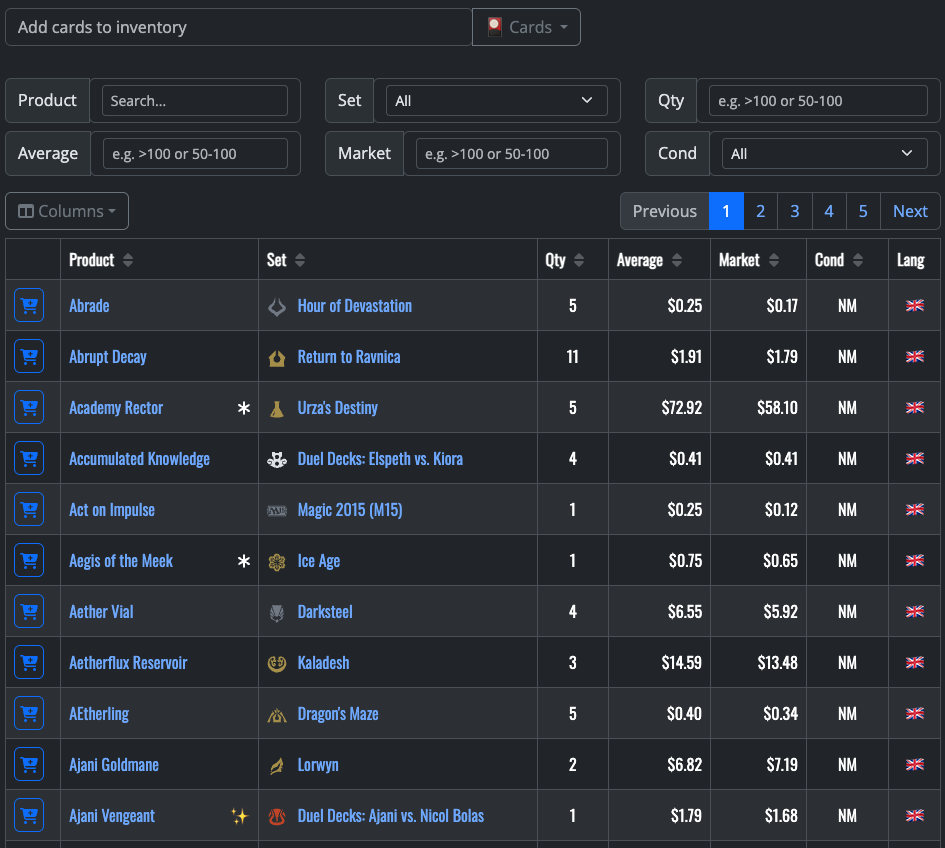
Inventory table showing owned cards
Tip: Use the filters at the top of the inventory screen to quickly find specific cards by name, set, condition, or price range.
Adding Cards to Inventory
You can add cards to your inventory in several different ways. All methods use the same transaction popup, which allows you to record purchases by creating "Buy" transactions.
Method 1: Add from a Card Page
The simplest way to add a specific card to your inventory:
- Navigate to the card's details page on MTGStocks
- Click the "Add to Inventory" button
- The transaction popup will appear, pre-filled with the card's information
Method 2: Add from the Inventory Screen
To add any card from within your inventory section:
- Go to your Inventory screen
- Use the search field (typeahead) at the top to find a card or product by name
- Select the card from the dropdown results
- The transaction popup will appear
Method 3: Add from Transactions Screen
To add more copies of a card you already own:
- Find the card in your inventory
- Click on the card to view its transaction history
- Click the "Add transaction" button
- The transaction popup will appear
Filling Out the Transaction Form
Regardless of which method you use, you'll need to complete the transaction form:
- Verify the card name and edition are correct
- Ensure "Buy" is selected (it's the default)
- Enter the buy price in the currency field
- Set the quantity
- Select the condition (Near Mint, Lightly Played, etc.)
- Choose the language (English is default)
- Verify or change the transaction date
- Optionally check "Foil Card" or "Signed Card" if applicable
- Click "Add to Inventory" to confirm
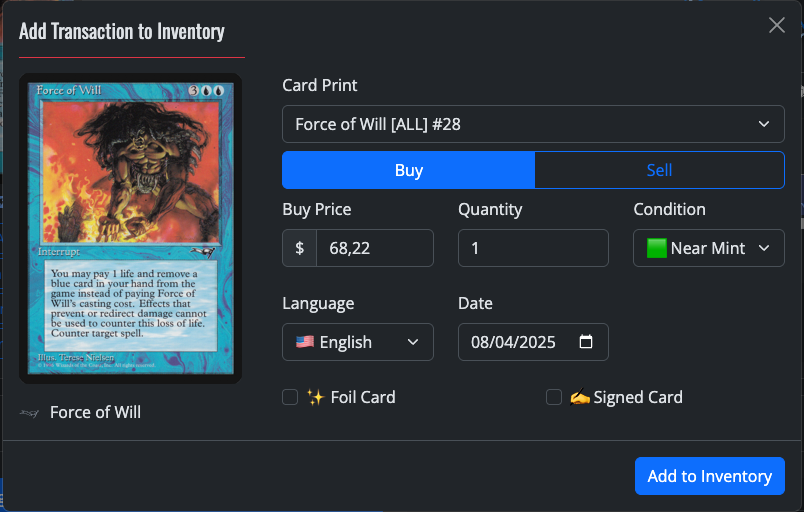
Transaction form for Force of Will
Tip: For sealed products like booster boxes, the process is identical. Just search for the product name and follow the same steps.
Transaction Management
Viewing Transactions
You can view all transactions for a specific card by navigating to that card's page. The transaction history shows:
- Date of transaction
- Quantity
- Price per unit
- Total price
- Condition
- Properties (language, foil status)
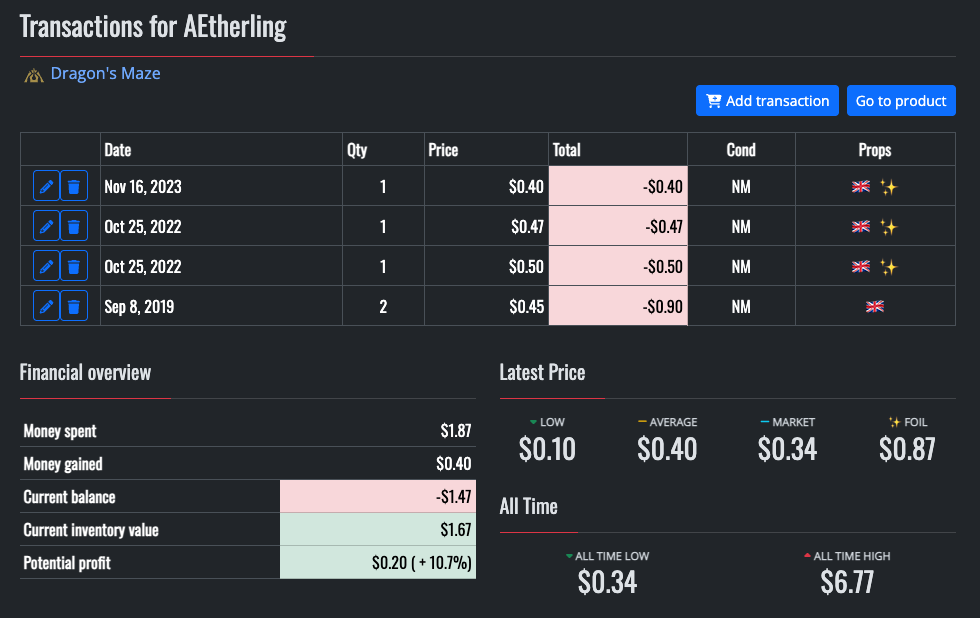
Transaction history for AEtherling
Editing and Removing Transactions
You can edit or remove any transaction in your history:
- To edit: Click the pencil icon next to a transaction
- To remove: Click the trash icon next to a transaction
Selling Cards from Inventory
To record selling a card:
- Find the card in your inventory
- Click "Add transaction"
- Select "Sell" instead of "Buy"
- Enter the selling price, quantity, and date
- Click "Add to Inventory"
The system will decrease the quantity of that card in your inventory and update your financial overview.
Statistics
The Statistics section provides a comprehensive overview of your entire collection, including:
- Total amount: Total number of cards in your inventory
- Cards: Unique card titles in your collection
- Value: Total current market value of your collection
- Daily/Weekly change: Value fluctuation over time
- Card breakdown by:
- Foil status (Foil vs. Non-foil)
- Rarity (Common, Uncommon, Rare, Mythic, Special)
- Card type (Creature, Sorcery, Instant, etc.)
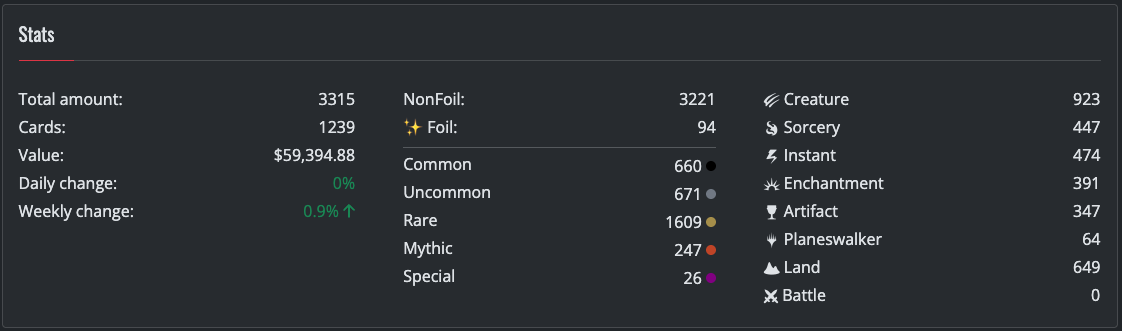
Collection statistics overview
Financial Overview
The Financial Overview section shows:
- Money spent: Total amount spent on purchases
- Money gained: Total amount earned from sales
- Current balance: The difference between money spent and gained
- Current inventory value: The current market value of all cards in your collection
- Potential profit: The difference between inventory value and balance, showing potential profit/loss
Tip: The Statistics and Financial Overview sections update automatically whenever you add, edit, or remove transactions.
Need More Help?
If you have questions about using the MTGStocks Inventory system, please visit our help center or contact us.